Silquick – Complete User Guide

Silquick is a contract-first project management platform designed for freelancers and their clients. It prioritizes clarity, proof, and structured workflow.

Important Note:Silquick does not process client payments. We focus on clarity, proof of work, and workflow management—not holding money.

Video Walkthrough Coming Soon

Full platform walkthrough coming soon.

1. Getting Started

For Freelancers

  • Sign up using your email and secure OTP verification.
  • Access the dashboard to manage all projects.
  • Action: Create a project to auto-generate a contract.

For Clients

  • No account required.
  • Access projects via secure "Magic Links" sent to email.
  • Links are time-limited for enhanced security.
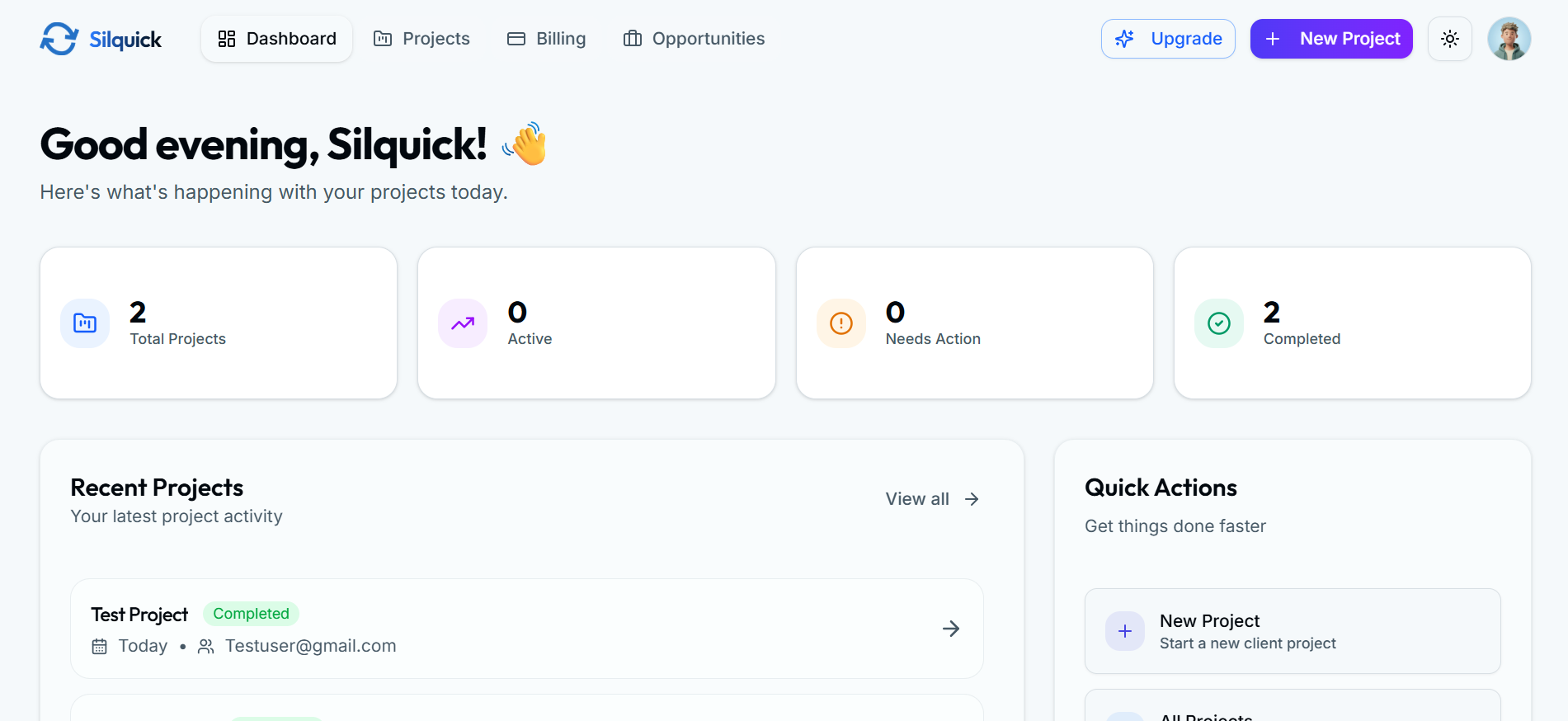
Dashboard Overview
Silquick Dashboard - Getting Started

The Silquick dashboard after signing in.

2. Project Creation & Contract Flow

When a freelancer initiates a project:

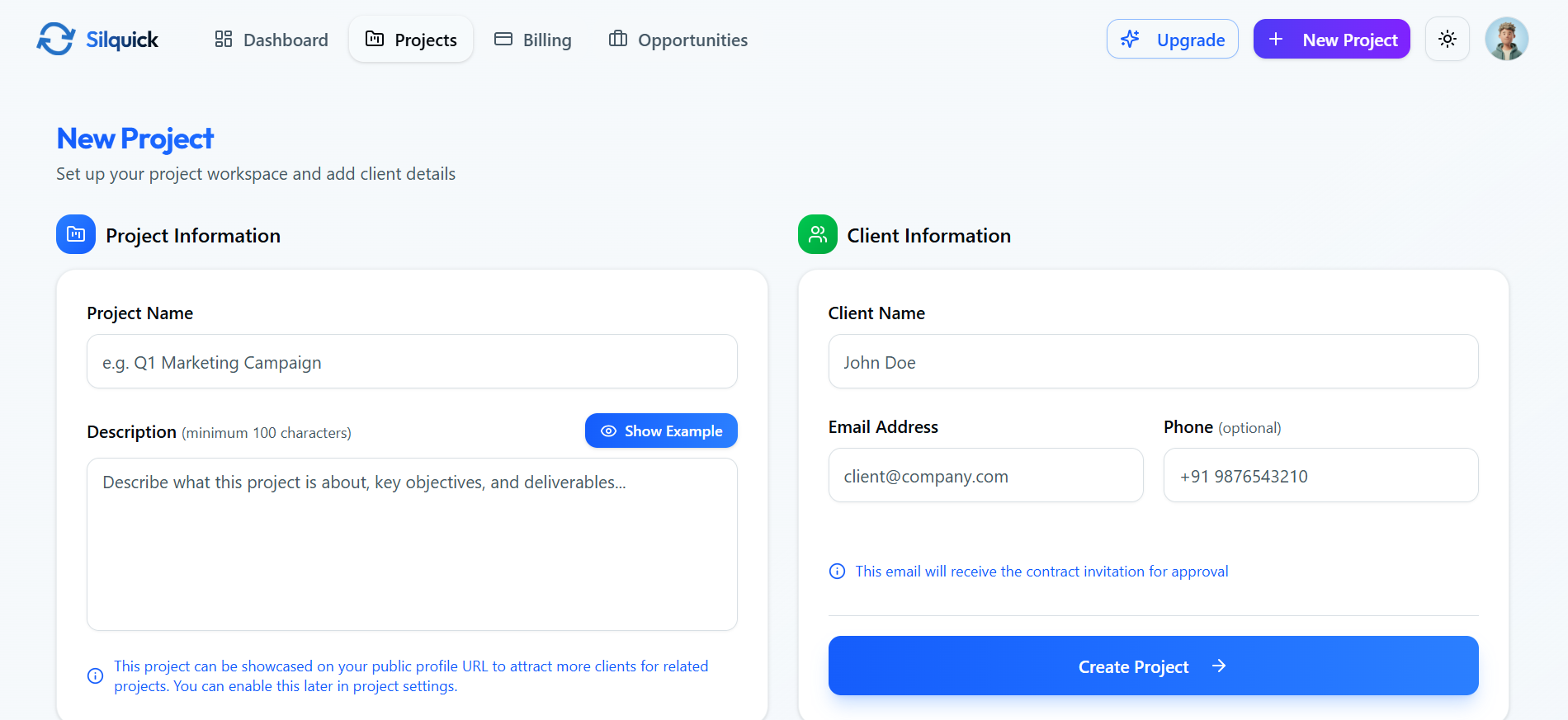
  1. Freelancer enters details (Project Name, Client Email, Description).
  2. Silquick instantly auto-generates a contract.
  3. The project remains "Pending" until the client approves the contract.

This ensures mutual agreement before a single pixel is moved or line of code is written.

Create New Project
Create New Project Form

The project creation form with client details.

3. Contract Experience

Freelancer Side

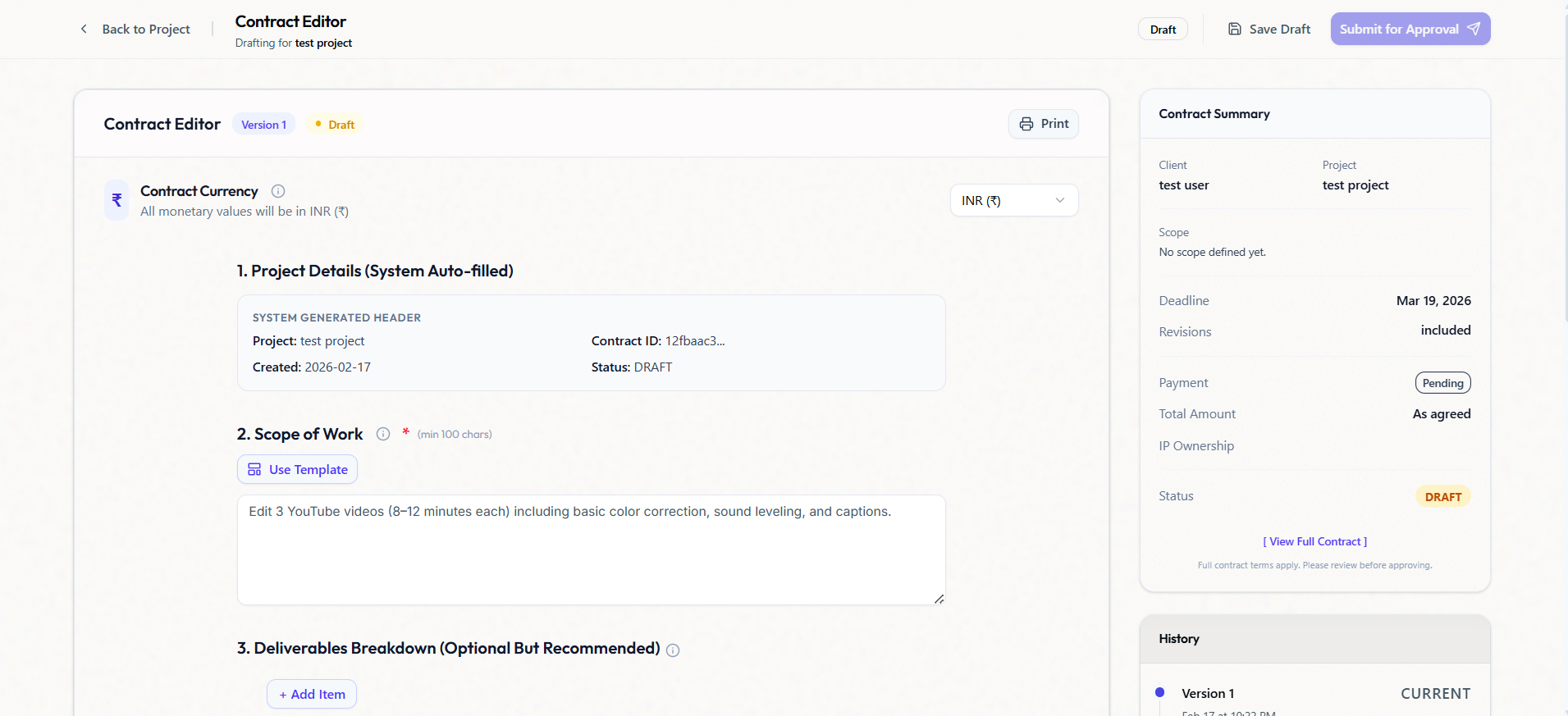
Freelancers can customize specific variables, while legal boilerplate remains locked for protection.

  • Editable: Scope of Work, Deliverables, Timeline, Revision Limits, Costs, and IP Ownership.
  • Locked: Termination clauses, Confidentiality, Dispute Resolution.
Contract Editor — Freelancer
Contract Editor - Freelancer View

The contract editor with editable fields highlighted.

Client Side

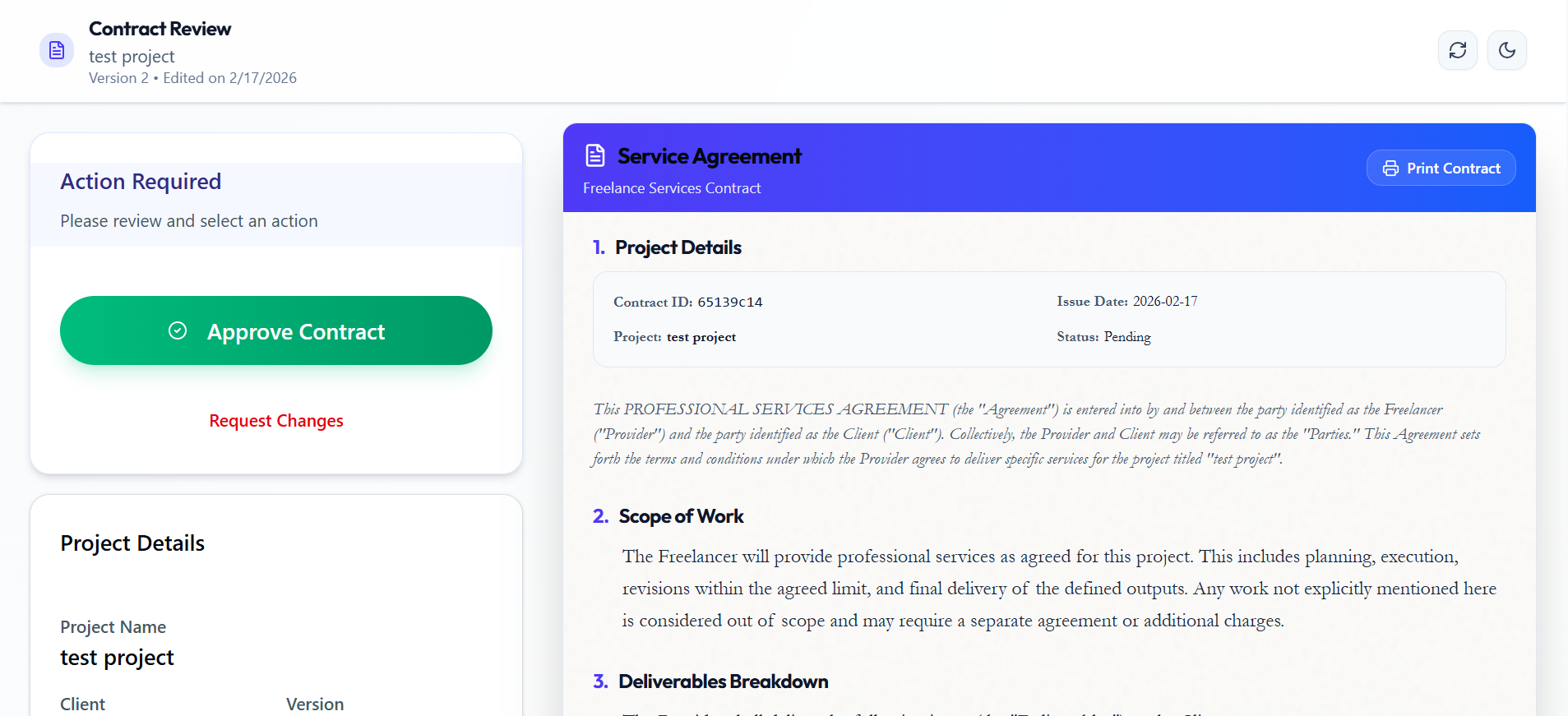
Clients receive a secure email link to review the agreement. They can:

  • View: Read-only access to terms.
  • Approve: Digitally sign to active the project.
  • Request Changes: Send back with specific reasons/comments.

The mobile interface is designed for quick, clutter-free approvals via a bottom-sheet action menu.

Contract Review — Client
Contract Review - Client View

The client's contract review interface with approve/reject actions.

4. Post Updates & Project Tracking

Once active, the project moves to the Post Update phase.

Freelancer Workflow

  1. Start Work: Notify client work has begun.
  2. Submit Draft: Share secure preview links.
  3. Revisions: Submit changes (via links) if requested.
  4. Final Delivery: Submit final assets for approval.

Client View

  • Visual roadmap (Signed → Draft → Final → Completed).
  • Live tracking of Revisions Used vs. Allowed.
Updates & Tracking
Post Updates & Project Tracking

The project tracking view with update cards and progress.

5. Revision Handling

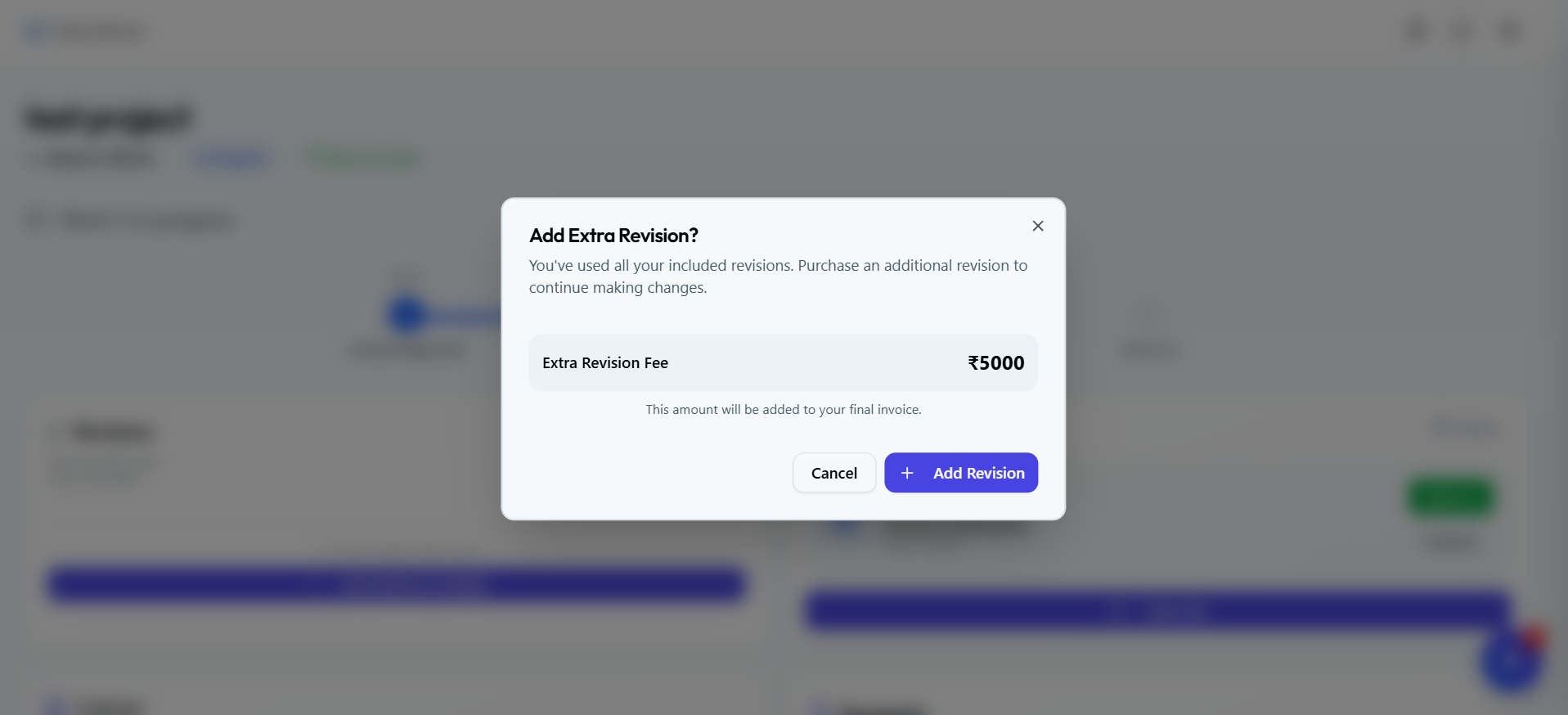
Silquick enforces the revision limits set in the contract.

  • Revisions are tracked visibly for both parties.
  • Limit Reached? The "Request Changes" button is disabled for the client. They must request additional revisions (per contract terms).

This feature is designed to prevent scope creep.

Revision Tracker
Revision Tracking Interface

Revision tracker showing used vs. allowed rounds.

6. Final Delivery & Completion

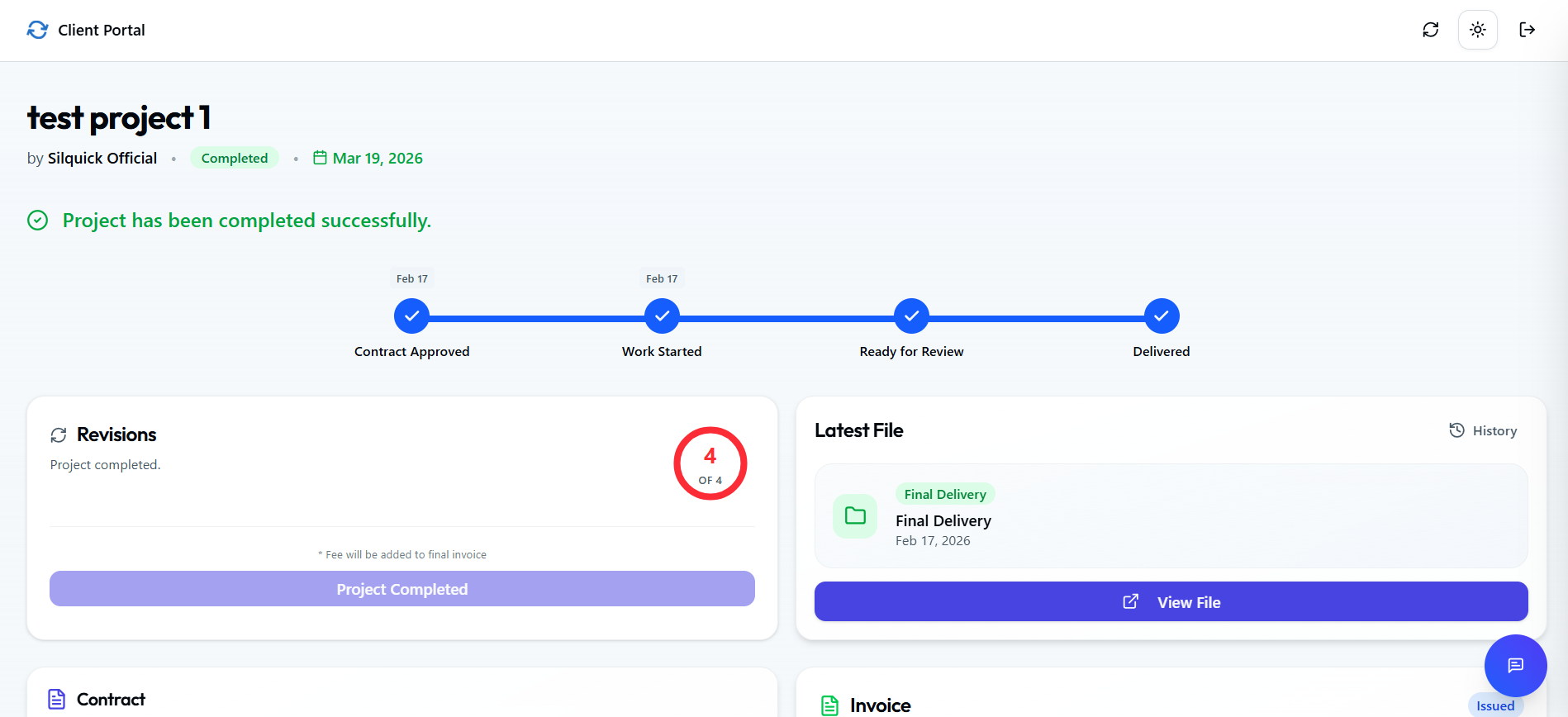
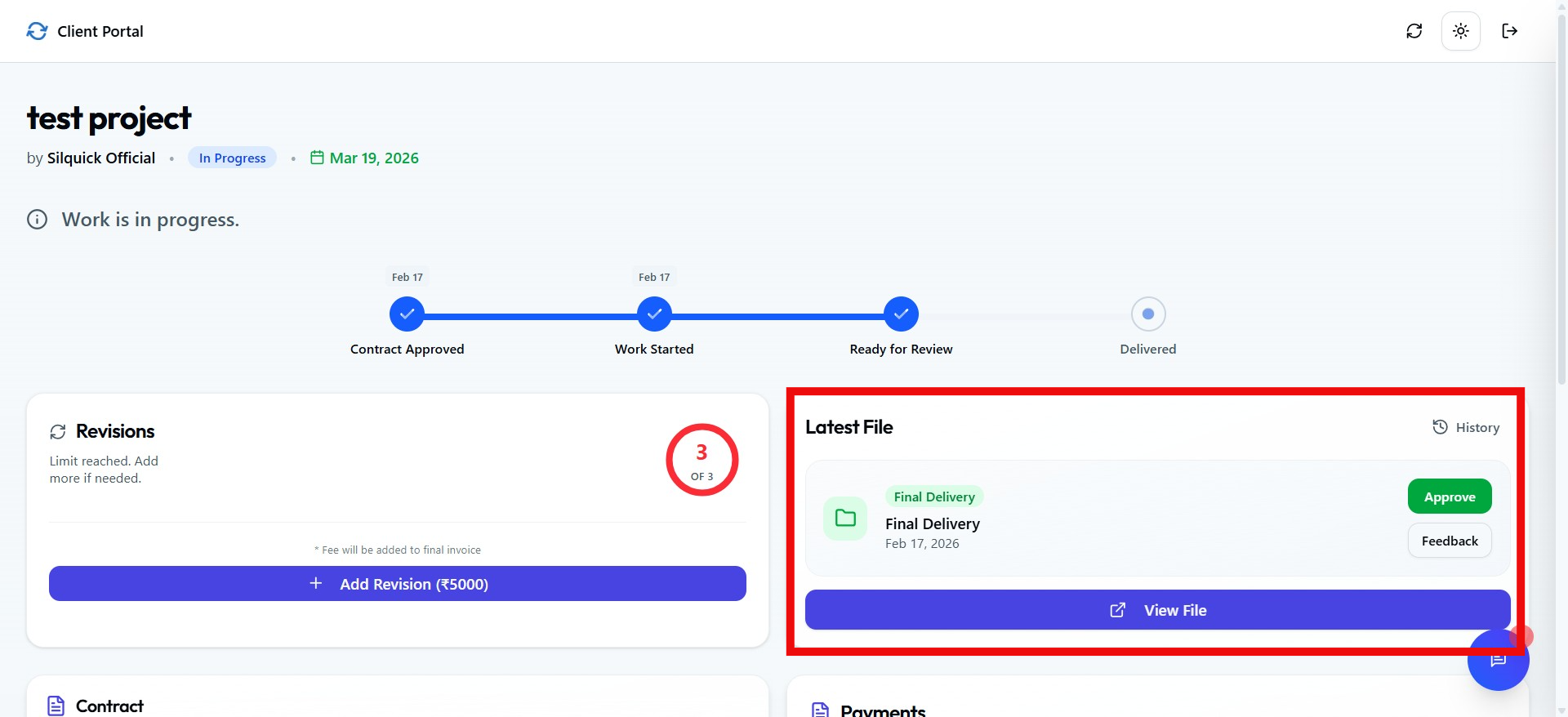
The freelancer submits the Final Delivery Link, moving the project to the review stage.

  • Approval: If the client approves, the project is marked Completed and becomes Read-Only.
  • Access: The client portal remains active for 7 days post-completion, after which the link expires. Freelancers retain full history.
Final Delivery
Final Delivery Submission

The final delivery submission and approval flow.

7. Invoice Generation

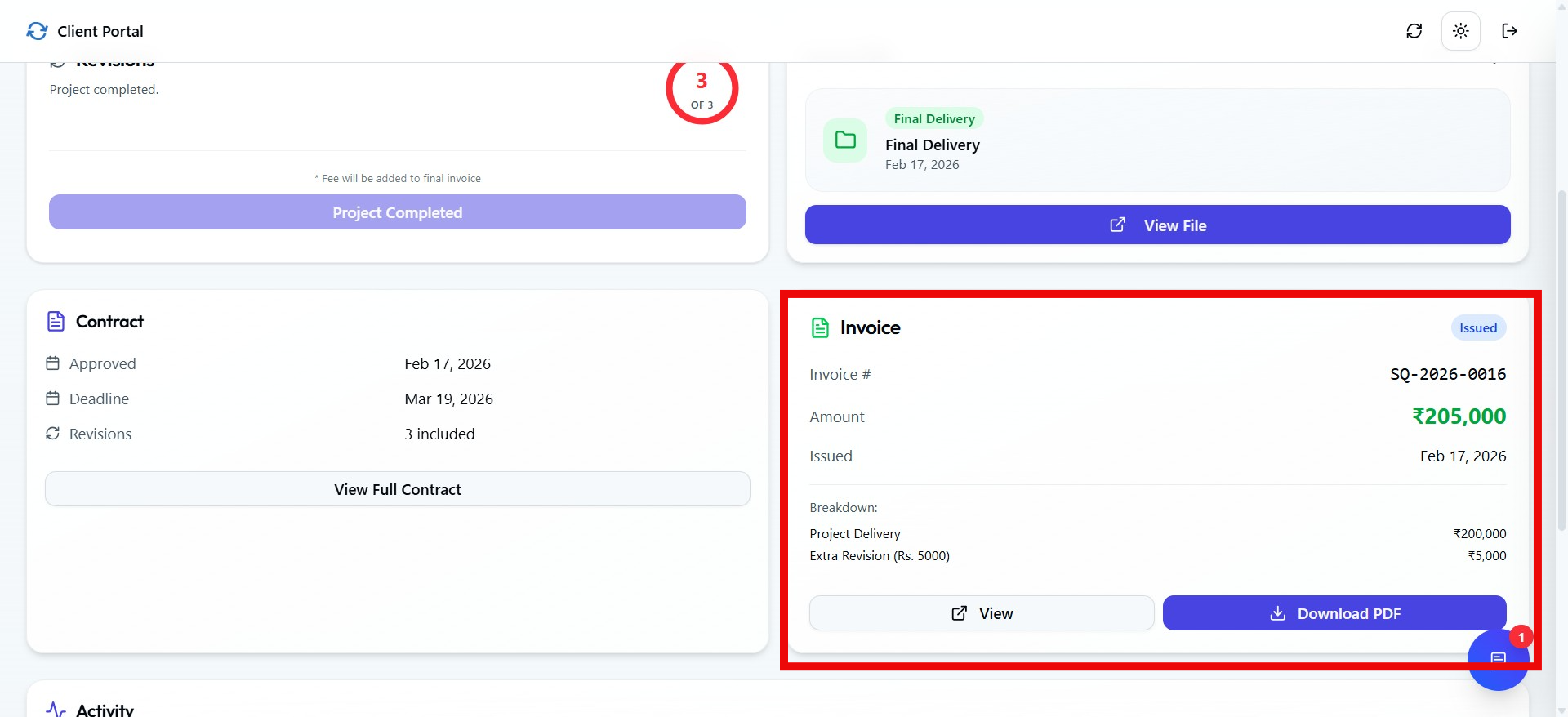
Upon final approval, an invoice is automatically generated.

  • Sent to the client via email.
  • Stored in the freelancer's project view.
Note:This invoice is for documentation and record-keeping only. Payments happen outside of Silquick.
Invoice Preview
Auto-generated Invoice

An auto-generated invoice after project completion.

8. Chat & Communication

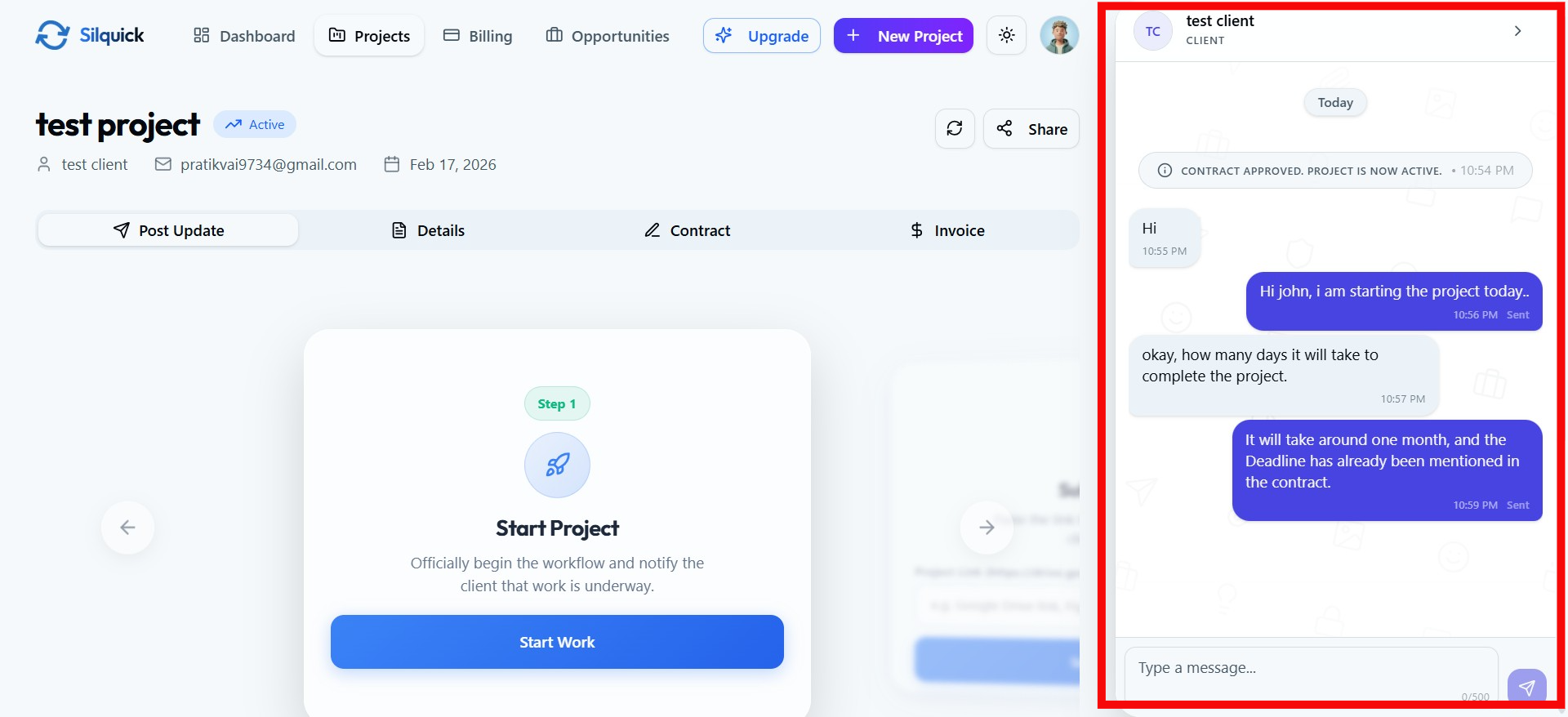
Chat becomes available only after contract approval and is disabled upon project completion.

  • Real-time text messaging.
  • Links allowed; no file uploads (use external links).
  • 500 character limit per message to encourage brevity.
Project Chat
Project Chat Interface

The in-project chat for real-time communication.

9. Subscription & Project Limits

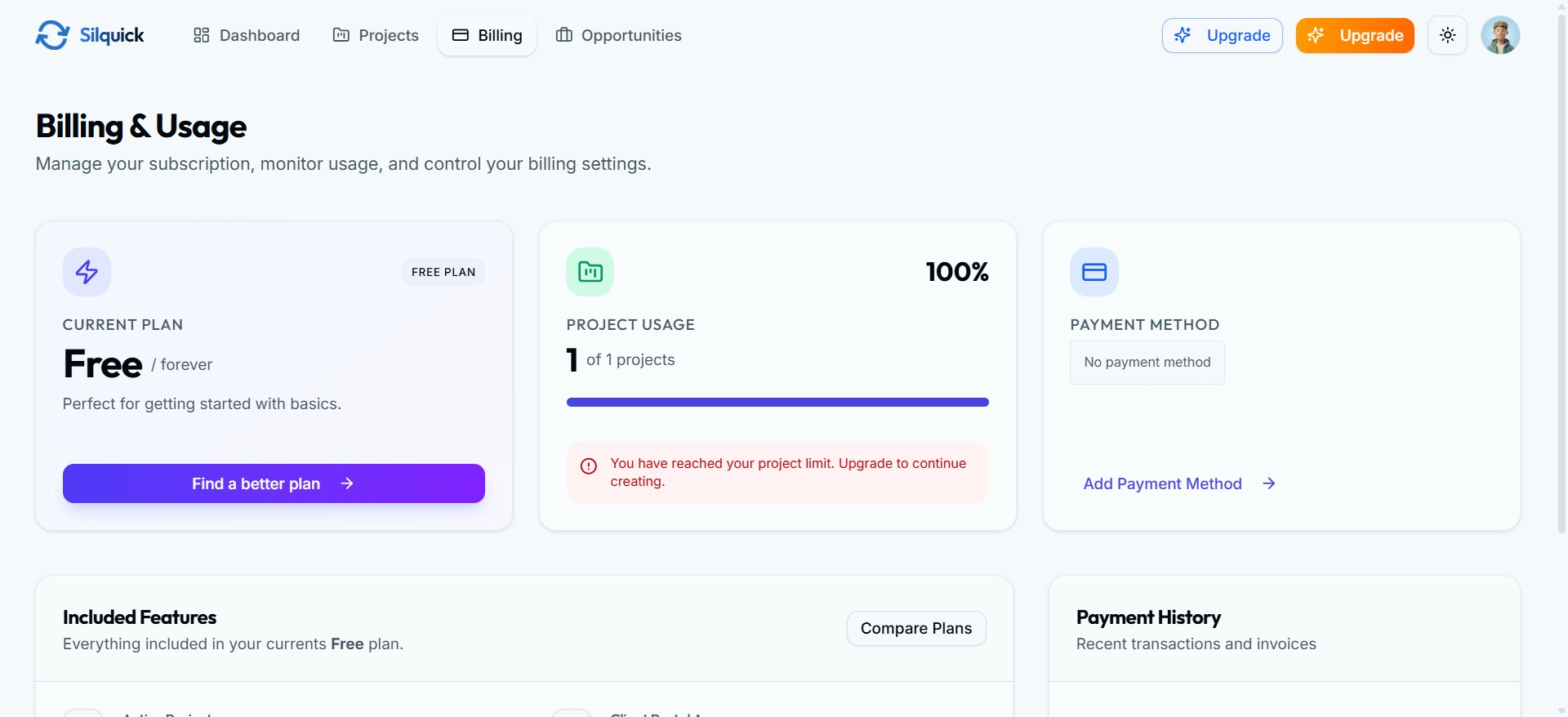
Plans are based on the number of active projects.

  • If a limit is reached, "Create Project" is paused.
  • Upgrading unlocks limits instantly.
  • Data Safety: Existing projects are never deleted, even if you downgrade.
Subscription & Limits
Subscription & Project Limits

The subscription plans and project limits overview.

10. Emails & Notifications

Silquick uses a "Magic Link" system. All emails contain secure, time-sensitive links for:

  • Contract Review
  • Final Delivery Approval
  • Invoice Access

11. Why Silquick Works

For Freelancers

  • Clear contracts prevent disputes.
  • Structured delivery proves work was done.
  • Revision limits protect your time.

For Clients

  • Simple, no-login approvals.
  • Clear expectations on deliverables.
  • Zero confusing dashboards.